Before you approve anything
- Connecting a wallet does not execute actions
- Connecting a wallet does not move funds
- Connecting a wallet does not grant trading permission
- Responsibility remains fully on the user
Before you click anything
Connecting a wallet is access setup: it defines how the interface will reference you and request future approvals. It is not an action.
It is not a login, and it does not shift responsibility to the system.
The “Connect wallet” button

Connect selects a reference address for the interface and establishes the future approval path.
At this point
- no message is signed
- no permission scope is granted
Screen: Wallet selection
This screen selects how future actions will be authorized, not whether actions are allowed.
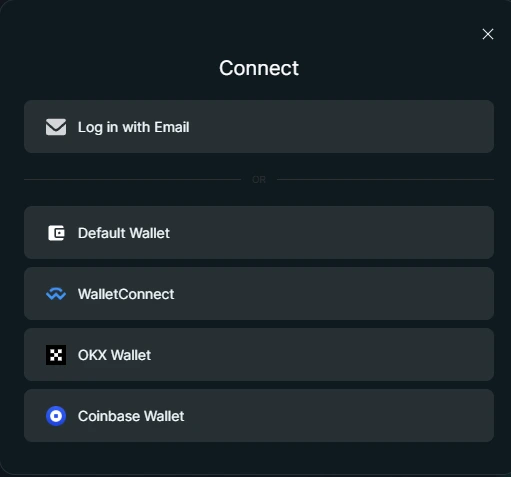
You are choosing the environment that will be used for future approvals.
Authorization model comparison
The word “account” may appear in the interface, but technically this is an access identity used for session continuity — not a custodial or site-managed account.
Choose your access path
You are choosing how future actions will be authorized.
- Email-based access — Session continuity without wallet signatures
- Wallet-based access — Direct signature authority via your wallet
Checkpoint
- No action has been approved yet
- Email access defines session continuity
- Wallet access defines the signature path
Email-based access
Email-based access establishes how the interface recognizes you between sessions.
Step 1 — Email submission
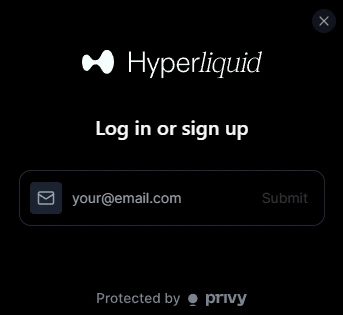
This screen completes the access setup step.
What this step does
Submitting an email creates an access identity used for interface state and session continuity. Actions still require explicit approval later, per action.
Step 2 — Access activation
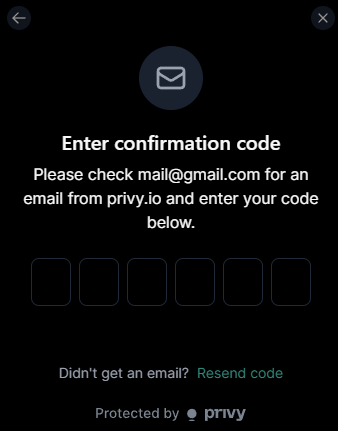
This is the moment access becomes active. After confirmation, the interface can keep your session state consistent.
Screen: Initial funding prompt
This screen does not change permissions. You can close it without approving anything.
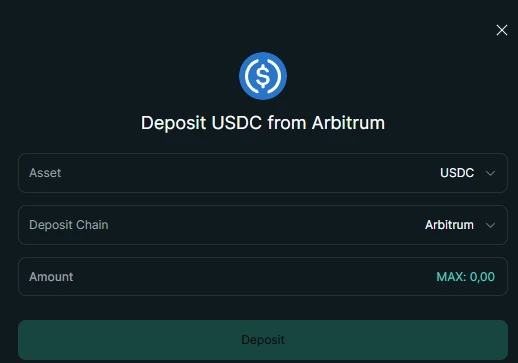
Wallet-based access
Wallet-based access means the interface connects directly to a wallet you control. Authorization happens through wallet signatures — not through site-managed identities.
Screen: Wallet connection approval (Default Wallet — Phantom)
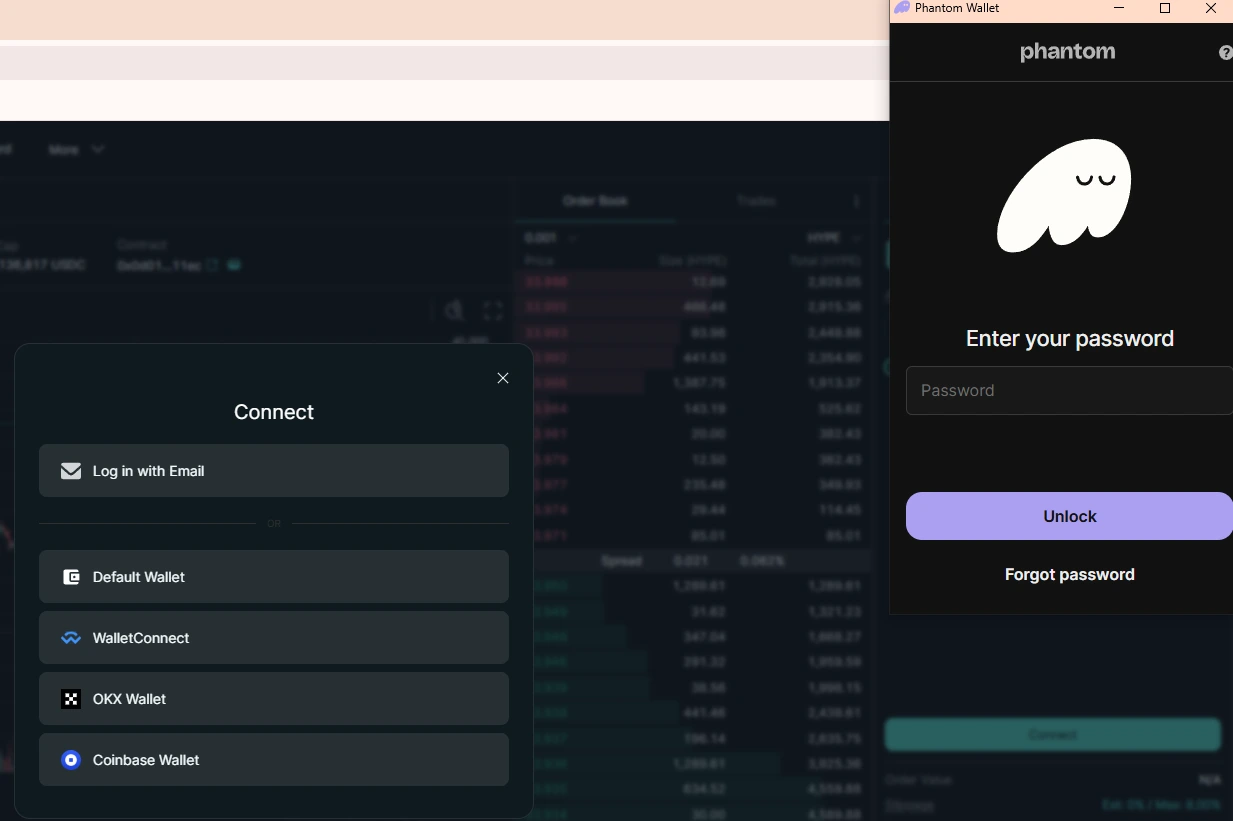
In this example, the Default Wallet resolves to Phantom. This confirmation screen belongs to your wallet — not to Hyperliquid. Unlocking your wallet allows it to respond to the connection request.
Unlocking the wallet only allows it to respond to requests. No trading, transfers, or contract interactions are approved at this stage.
What this approval allows
After this connection approval, the interface can view balances and activity for the selected address. This is required to display positions, orders, and current state. Actions still require explicit approval later.
Why wallets phrase permissions this way
Wallet prompts describe these permissions conservatively. “View balances” and “view activity” refer to reading on-chain state so the interface can display it.
Control remains with the wallet at all times.
Other wallet options
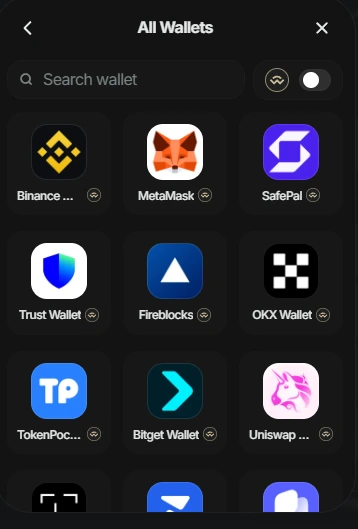
WalletConnect provides access to a large number of wallets. This list represents different wallet environments — not different permission levels.
All wallet options use the same authorization model. The difference is only the environment in which the wallet operates — browser, mobile device, or specific extension.
This guide does not compare or recommend wallets, because the authorization model does not change.
Wallet-based access only defines how signatures are requested. What the site can do next depends entirely on what you explicitly approve.
All wallet options use the same authorization model. The interface does not gain new abilities based on wallet choice — only the environment changes.
End of this step
At this point, the access setup is complete. You’ve only connected an access path to the interface — nothing has been executed automatically. No actions were triggered, no permissions were granted, and nothing can happen without a deliberate approval from you in a later step.
From here on, everything depends on what you choose to do next. Any trade, transfer, or interaction will still require an explicit action and a clear confirmation from you.