Before you open a position
- Opening a position is a real action that changes system state
- Hyperliquid includes different market types: the screen opens on Spot by default, and in this guide we use Perps as the example
- Once executed, the result cannot be undone
- Your position will immediately start changing with the market
What this step does
Opening a position turns your available balance into an active exposure to the market.
Until this point, your funds are idle. After this step, they begin to respond to price changes in real time.
This is the moment where you move from observation to participation.
Step 1 - Start on the main trading screen
Screen: Chart + trading panel
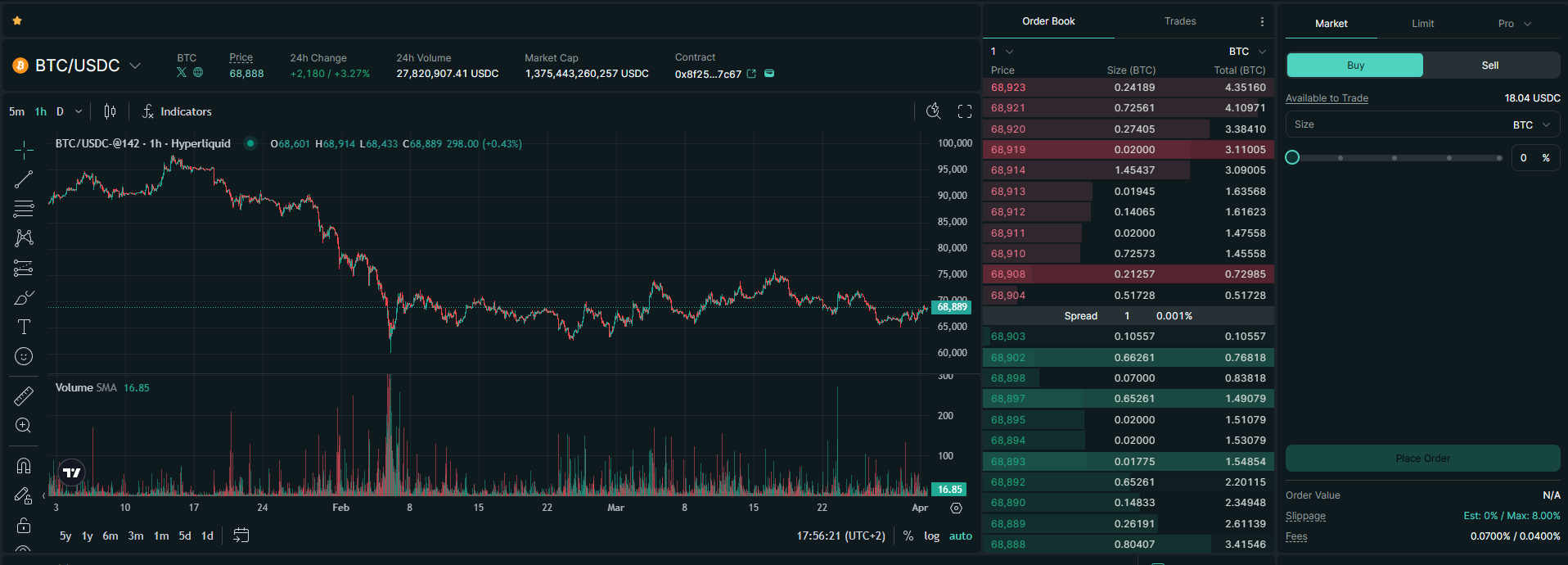
Main trading UI with chart + order panel
The trading interface is divided into two main areas:
- the chart, which shows market movement
- the trading panel, where you define your trade
This is where you select a market and prepare your trade.
Step 2 - Choose the market type for this guide
Screen: Markets selector
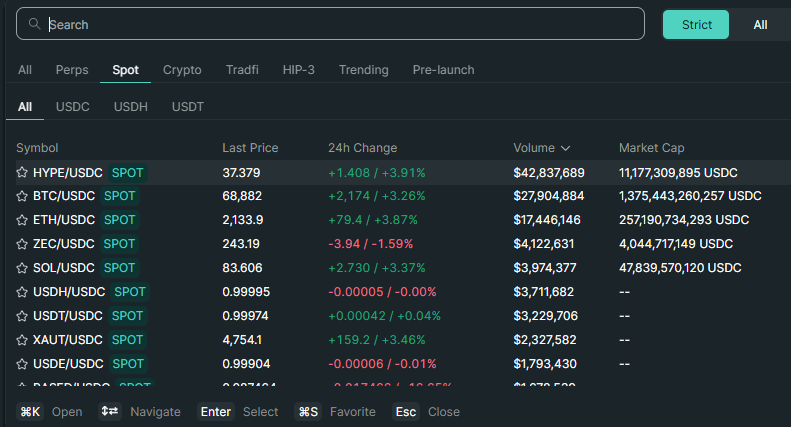
Market selector
The interface opens in Spot by default.
For this guide, switch to Perps.
To do this, click the market ticker at the top of the screen and select a Perps market.
Step 3 - Define your position in the trading panel
Screen: Order form
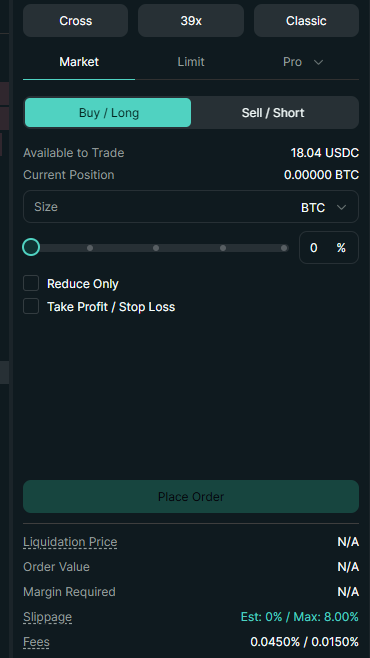
Order panel with size + Buy/Sell
In the trading panel, you define the position you want to open.
You choose:
- Direction (Buy / Long or Sell / Short)
- Position size
Long vs Short
- Long - you profit if the price goes up
- Short - you profit if the price goes down
If you are unsure, start with a small long position on a major asset like BTC or ETH.
Position size can be entered either in base (asset amount) or in quote (position value, usually USDC), depending on the input mode selected in the panel.
These inputs determine your exposure to the market once the position is executed.
Leverage increases both profit and risk
Leverage lets you open a larger position with less capital.
- low leverage (2x-3x): lower risk
- high leverage: higher risk of liquidation
If you are just starting, keep leverage low.
Check your liquidation price
Before placing a trade, check the liquidation price.
This is the price where your position will be automatically closed if the market moves against you.
If it is too close, reduce your leverage or position size.
Once these settings look correct, submit the order.
You are opening a position, not buying the asset directly.
You can use a Market or Limit order. In this guide, we use a Market order for simplicity.
Additional settings like margin mode and leverage can be adjusted, but are not required for the basic flow.
Step 4 - Submit the order
Screen: Order confirmation
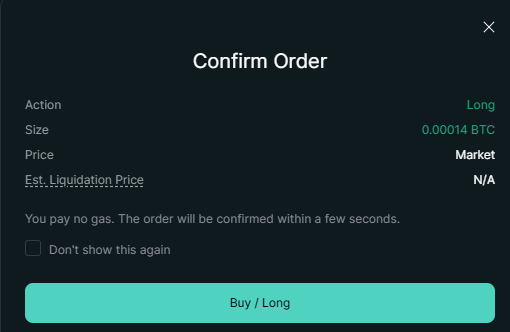
Confirm Order modal before the order is sent.
When you submit the order, it is immediately applied to the system.
There is no separate processing stage - your input directly changes the system state.
At this point, your wallet may ask for confirmation.
This is the moment where your intent becomes an action.
Once confirmed, the order is sent and cannot be canceled retroactively.
Step 5 - Position is now live
Screen: Active position

Live position appears in the Positions tab with PnL, margin, and liquidation fields.
Once executed, your position becomes part of the system state and appears in your account.
At this point:
- your balance is partially allocated
- your position is exposed to price changes
- profit and loss start updating immediately
There is no "activation" step after this.
What happens after you open a trade
Your position appears in the positions panel with real-time profit and loss.
You can close it at any time or manage it as the market moves.
What is happening now
A position is not a static object - it is part of a continuously updating system.
As the market moves:
- your PnL changes
- your margin changes
- your risk changes
This happens automatically, without additional actions from you.
Order -> Position
Key idea
A position is not something you manage separately - it is the direct result of your action and immediately becomes part of the system.
Reinforcement
Opening a position follows the same system logic:
- you submit an action
- the system updates state
- the result appears immediately
There is no stage where the outcome can be adjusted after submission.
What to be aware of
- Your position starts changing immediately after execution
- There is no pause between opening and market exposure
- Closing or adjusting requires a new action
You can move on when
- You understand how an order becomes a position
- You recognize when a position becomes active
- You can explain why positions update automatically without new actions
Start simple
Your first trades are for learning.
- use small size
- avoid high leverage
- focus on understanding how positions work
This approach makes the next stage of position management much easier.
Common mistakes
- using too much leverage
- opening large positions too early
- not checking liquidation price
Next step
Now that your position is live, the next step is to understand how it changes over time and when it becomes unsafe.